
Why Your PC May Lose Its BIOS Settings
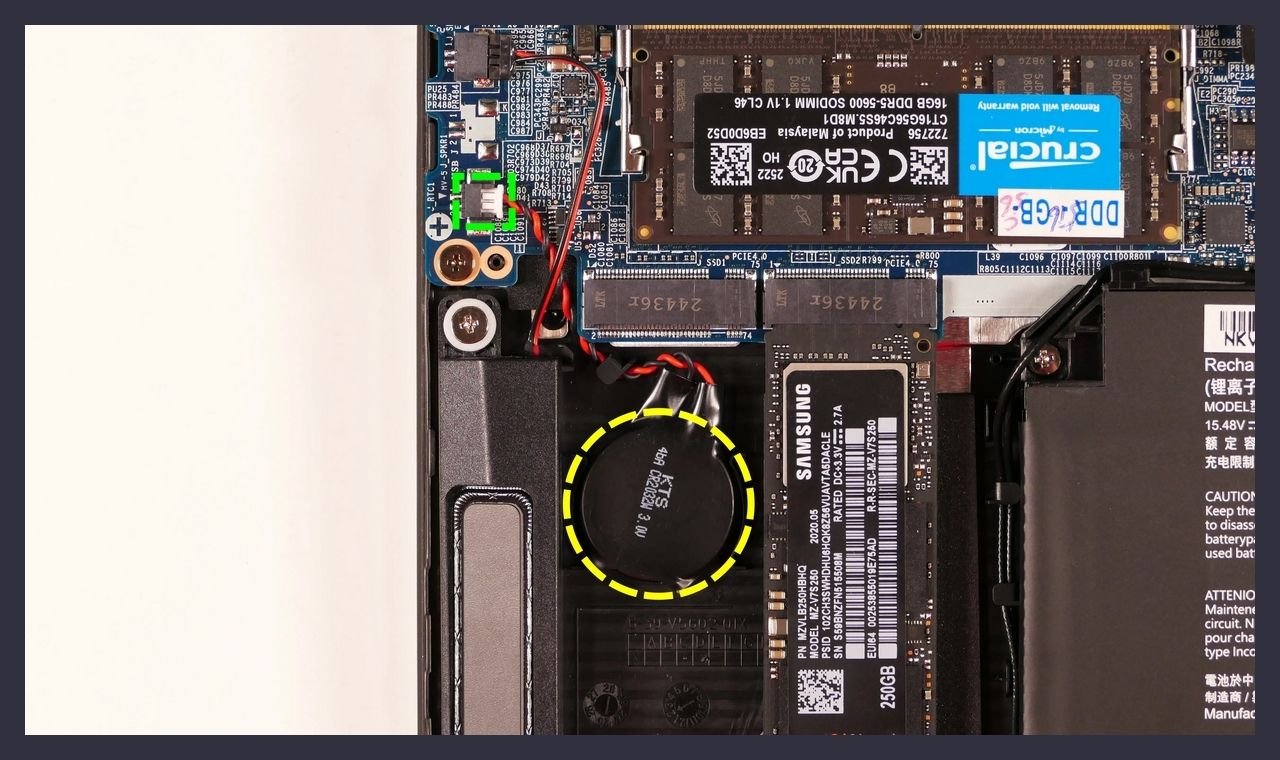
If your computer forgets the date every time you unplug it, throws a “CMOS checksum error” at startup, or suddenly cannot find the drive it booted from yesterday, the cause is often a coin-sized battery on the motherboard that costs about three dollars. It is one of the few genuinely simple failures left in modern hardware, and it is worth understanding before you assume something expensive has gone wrong.
What the CMOS battery actually does
CMOS stands for complementary metal-oxide semiconductor, which describes how the chip is built rather than what it does. What matters is the job: a small amount of memory on the motherboard holds your firmware settings, and a real-time clock keeps track of the date and time. Both need power around the clock, including the hours and weeks your machine spends unplugged.
That is the battery’s entire purpose. It is not charging your computer and it plays no part in running it. It quietly powers the clock and preserves settings whenever the system has no other source of power. On most boards it is a CR2032 lithium cell, roughly the diameter of a nickel, sitting in a clip you can see once the case is open.
Two clarifications worth making, because they are a common source of confusion. Modern firmware settings are usually stored in flash memory rather than in volatile CMOS, so a dead battery does not always wipe every configuration. And UEFI has largely replaced traditional BIOS on machines built in the last decade, though almost everyone still calls the settings screen the BIOS. The battery’s role is the same either way.
How a failing battery shows up
These cells typically last somewhere between three and ten years. They rarely fail suddenly. Instead the symptoms accumulate, and they are easy to misread as a failing drive or a corrupted operating system.
- The clock resets. The date jumps back to something like 2015 or the board’s manufacturing date every time the machine is fully powered down.
- An error appears at startup. Messages such as “CMOS checksum error,” “CMOS read error,” or “system battery voltage is low” point directly at the battery.
- Firmware settings revert. Boot order, fan curves, virtualization support, XMP memory profiles, and secure boot settings return to defaults on their own.
- The machine will not boot from the right device. With boot order reset, the system may look at a network adapter or an empty slot first and report that no bootable device was found — alarming, but not a dead drive.
- Certificate and login errors online. A wrong system clock breaks TLS validation, so browsers report that sites are insecure and single sign-on quietly stops working.
That last symptom is the one that most often lands on a help desk as something else entirely. A workstation that cannot reach any secure site looks like a network problem until you notice the clock says it is 2011.
Confirming it before you replace anything
- Shut the machine down fully, unplug it, and leave it off for an hour. Power it back on and check the clock. If the time is wrong, the battery is no longer holding.
- Read the exact startup message. Firmware is unusually direct about this failure, and the wording often names the battery outright.
- Check the reported voltage. Many desktop firmware screens list the CMOS cell under a hardware monitor or health page. A healthy CR2032 reads about 3.0 to 3.3 volts; below roughly 2.7 volts it is on its way out. A multimeter across the removed cell gives the same answer.
- Rule out the obvious alternative. If settings only change after a crash or a firmware update, or if you have been resetting the board with a jumper or the clear-CMOS button, the battery may be fine.
Replacing it
On a desktop this is one of the least intimidating repairs in computing. Shut down, unplug the power supply, hold the power button for several seconds to drain residual charge, ground yourself against the chassis, then release the clip and lift the old cell out. Note which side faces up — the positive face, marked with a plus, almost always points away from the board. Seat the new cell, close the case, and power on.
Expect the firmware to greet you with a warning and an incorrect clock the first time. That is normal. Set the date and time, restore boot order and any settings you rely on, save, and reboot. This is the moment to appreciate having written those settings down beforehand, particularly on a machine with a specific drive order or a tuned memory profile.
Laptops are a different matter. Some use a standard cell in an accessible bay, but many use a battery wrapped and soldered to a connector, sometimes buried beneath the mainboard. If reaching it means removing the board, the repair stops being trivial and it is reasonable to hand it to someone who does that work regularly.
When the battery is not the problem
If a fresh cell drains within weeks, the battery was a symptom rather than the cause. A short in the holder, a damaged trace, or a failing power circuit can pull current continuously even when the system is off. Repeated settings loss with a healthy cell can also point to corrupted firmware, in which case a clean reflash is the next step rather than another battery.
The practical takeaway
A dead CMOS battery is one of the few hardware faults that looks far worse than it is. It imitates a failing drive, a broken network stack, and an unstable operating system, and it is fixed with a part sold at any grocery store. When a machine starts forgetting who it is, check the clock first. On a system old enough to be out of warranty, replacing the cell preemptively during any other service visit is time well spent.
If you would rather not open the case — or you have a fleet of aging machines showing these symptoms and want them handled properly — that is the kind of IT support work we do, on site and through remote IT support. Get in touch and we will take a look.

Dustin Smith is the founder of TechTalent LLC, where he works on web design, IT support, and technical documentation for businesses and organizations across southern Minnesota.
View All Articles